
Turn On Confirm Move Before an Accidental Tap
On this page
Turn on move confirmation if you want to check a move before Chess.com submits it. Choose the setting for the game type you play: Live and Daily have separate entries.
Enable the right game setting
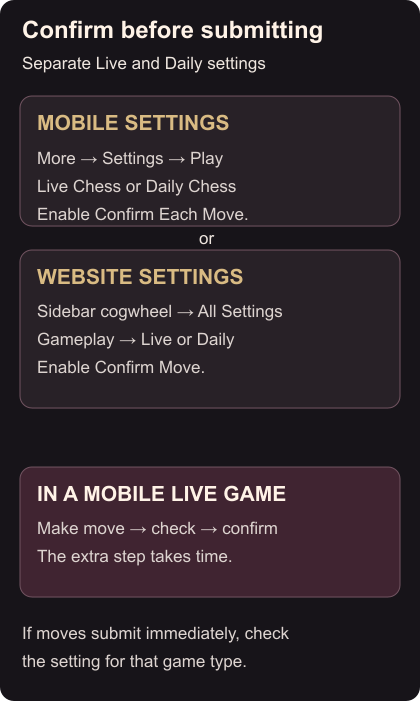
On iOS or Android, open More → Settings → Play. Select Live Chess or Daily Chess, then enable Confirm Each Move.
On the website, click the cogwheel at the bottom of the left sidebar. Open All Settings → Gameplay, find the Live or Daily Games section and turn on Confirm Move. Confirmation settings
Check before confirming
In a mobile Live game, making a move now offers a checkbox before it is played. Check the piece and destination, then confirm the intended move. If moves still submit immediately, return to settings and check that you enabled the option under the matching game type.
The extra step takes time. It can slow you down when the clock is nearly empty, so decide whether that trade-off suits your time control. To remove it, return to the same setting and switch it off.
Use a friend challenge for an online match. If both players are next to each other, set up Play in Person on one device.