
Take and Find a Photo Mode Screenshot on Steam
On this page
Open Photo Mode, frame your shot, then save it with Steam’s screenshot control. Simply entering the mode doesn’t create an image. These steps cover Borderlands 4 on PC through Steam, playing solo.
Set up the frame
During gameplay, open the pause menu and choose Photo Mode. The world pauses by default in single-player. Move the camera with your normal movement controls, then adjust Field of View until the subject and surroundings fit. Photo Mode controls
Move the camera before adding filters. Check the edges for a weapon, character or piece of scenery cutting into your subject. If floating combat text distracts from the picture, turn Damage Numbers off in the Photo Mode settings. Keep Players on when you want your Vault Hunter in the shot.
Capture the picture and find its file
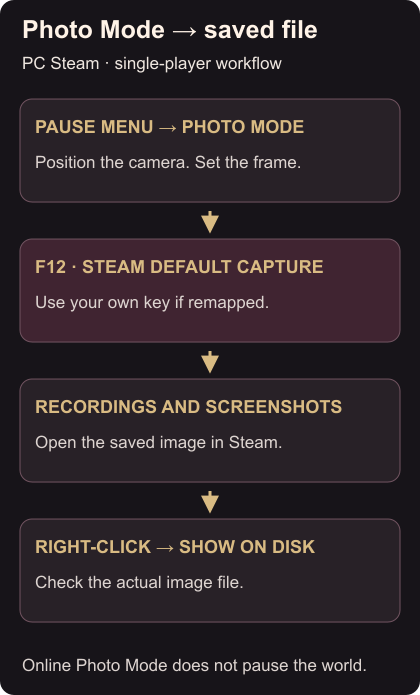
Press Steam’s default screenshot key, F12, or your replacement binding. Photo Mode uses your platform’s screenshot system; the image isn’t stored in a separate in-game photo album. Saving photos
In your Steam library, select Borderlands 4 and open Recordings and Screenshots. Open the image, then right-click and choose Show on disk. That takes you to the actual saved file. Finding the screenshot
Check that the image contains the frame you intended. If no screenshot appears, check your Steam capture binding rather than searching for a guessed game-folder path.
Photo Mode cannot open during cutscenes. In online multiplayer it doesn’t pause the world, so other players and enemies keep moving. Availability and multiplayer
For the action leading into your shot, learn the air dash and glide or read elemental health bars.